How to Edit Trending Instagram Reels with VN Video Editor
Hey guys, welcome back to another tutorial! In today’s post, I’ll show you how you can edit your normal videos into trending Instagram Reels using VN Video Editor. With this app, you can add smooth transitions, apply slow-motion, sync beats with trending sounds, and make your reels go viral.
Step 1: Install VN Video Editor
If you don’t already have VN Video Editor on your phone, head over to the Google Play Store or Apple App Store and install it. Once installed, open the app and click on the “+” icon to start a new project.
Step 2: Import Your Video
Select the raw video you want to edit and click Next. The video will load into VN’s editing timeline. If your video already has background sound or music, mute it by clicking on the volume option.
Step 3: Apply Color Grading
To make your video look cinematic, use VN’s Filter and Adjust options:
- Decrease or increase Exposure as needed.
- Increase Contrast for more depth.
- Adjust Brightness to highlight details.
- Boost Saturation to make colors pop.
You can also use the HSL tool to change specific colors, such as adjusting reds, greens, or blues to enhance your outfit or background.
Step 4: Add Slow Motion & Speed Ramps
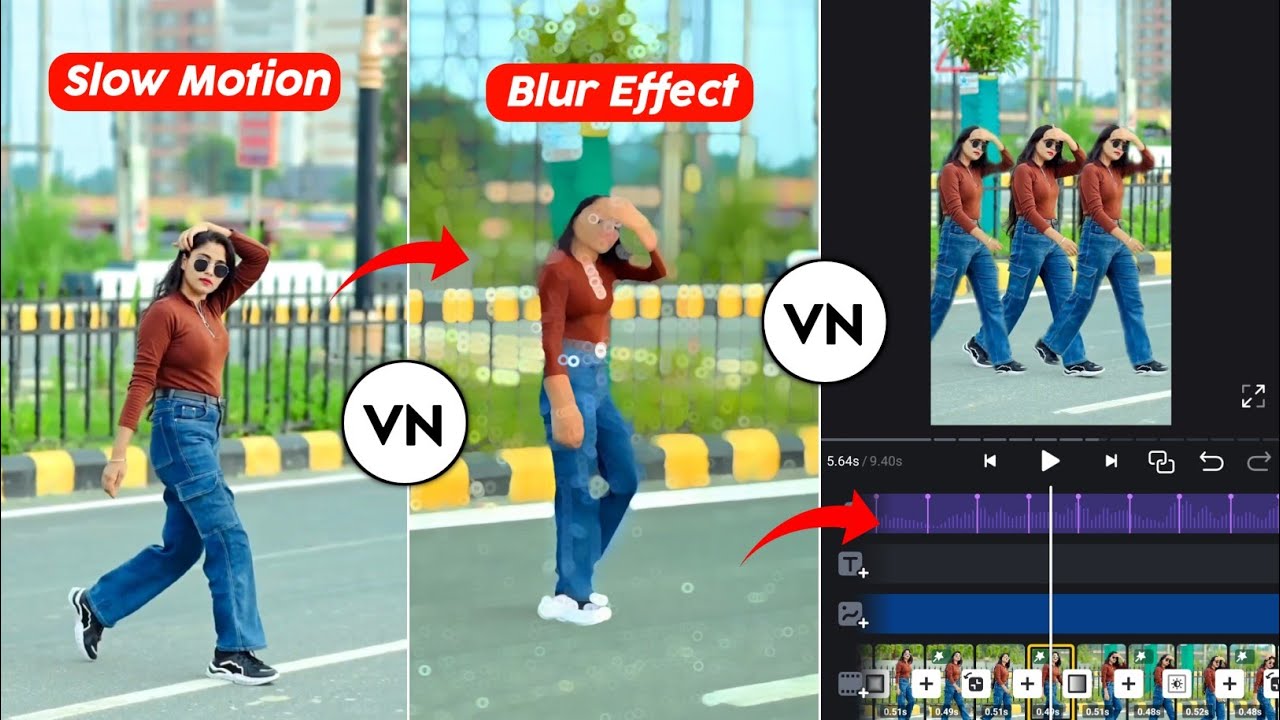
Split your video into two parts. Keep the first part normal, and convert the second into slow motion. Use VN’s Speed → Custom option to set different speed points:
- Add beat points to mark where you want slow motion or fast motion.
- Drag the beat points up or down to adjust the speed accordingly.
Step 5: Split Clips and Add Transitions
To make your video smooth and engaging:
- Split your video into smaller clips.
- Zoom into the timeline for accuracy.
- Click the “+” icons between clips to add transitions like zoom, swipe, or dissolve.
Step 6: Add Trending Music
No reel is complete without music! Tap on “Tap to add music” and choose your desired audio. If your trending sound is in a video format, use the Extract from Video option.
For free trending sound libraries, check out:
Once your music is added, use the Auto Beats option to automatically mark the beat points. Adjust the clips according to these beats for perfect sync.
Step 7: Apply FX Effects
To make your video stand out, add FX effects:
- Apply the Black Effect to the first clip.
- Skip one clip, then apply Jitter 1 or Jitter 2 to the next.
- Repeat this pattern to create a stylish, professional look.
Step 8: Export Your Reel
Once you are happy with your edits, click on Export at the top and save your video in high quality. Your Instagram reel with trending sound, transitions, and slow motion is now ready!
Final Thoughts
Using VN Video Editor, you can easily create professional-level Instagram Reels with trending sounds, beat-sync transitions, and cinematic color grading. Whether you’re a beginner or an advanced editor, VN makes the process simple and efficient.
If you found this tutorial helpful, don’t forget to share it with your friends. And for more video editing tutorials, check out Wondershare Filmora’s Video Editing Guides or Adobe Creative Cloud.
💬 Join our WhatsApp Channel for updates!
👉 Click here to join