How to Edit Your Normal Photos with ChatGPT in Just One Click
Hey guys, welcome back to another tutorial! In today’s guide, I’m going to show you how you can easily edit your normal photos into something creative and eye-catching without using any professional editing software. Yes, you heard it right — with the help of ChatGPT, you can transform your photos with just one click. If you stick with me until the end, you’ll be able to do this yourself in a few simple steps.
Why Use ChatGPT for Photo Editing?
Normally, photo editing requires apps like Photoshop, Lightroom, or mobile editors such as CapCut. But with ChatGPT’s new features and AI integration, you can upload a normal photo, apply your own commands (called prompts), and get a completely new, customized image generated for you. This is especially useful if you don’t want to spend hours learning editing software.
Step-by-Step Process to Edit Photos in ChatGPT
- Download ChatGPT App: Go to the Google Play Store and install ChatGPT on your smartphone if you haven’t already.
- Open the App: Once installed, open ChatGPT. You’ll see an interface with an option that says Ask Anything and next to it, a gallery icon.
- Upload Your Photo: Tap on the gallery option and select any normal photo from your phone that you want to edit.
- Use a Prompt: To edit the photo, you need to give ChatGPT a prompt. Don’t worry — I’ll provide a ready-to-use prompt that you can copy directly from the description of the video or blog. All you need to do is adjust the text to include your name or desired message.
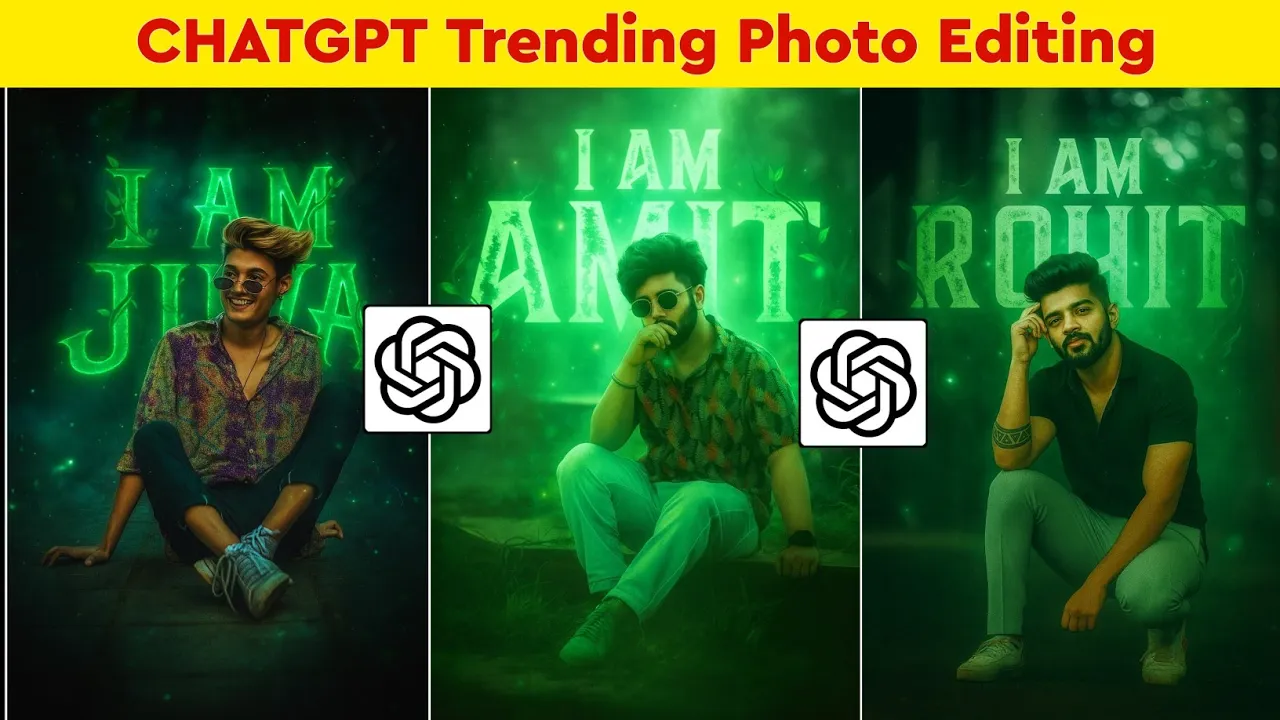
- Customize Your Prompt: For example, if the prompt says “I am Rocky” with glowing text, replace “Rocky” with your own name in capital letters. This way, the AI will add your custom text to the photo.
- Paste & Send: Copy your customized prompt and paste it into the Ask Anything box. Tap send, and ChatGPT will process your request.
- Wait for Processing: The app will take a few seconds to process. After that, your AI-generated photo will be ready!
Example Result
I tried this myself by uploading a normal photo and asking ChatGPT to add my name “ROCKY” in glowing text behind me. The result was amazing — the face remained exactly the same, but the background had my name glowing beautifully.
Saving and Retrying
Once your photo is ready, you can save it directly to your gallery by tapping the Save option. If you are not satisfied with the result, simply type the command again or make small adjustments in your prompt, and ChatGPT will generate a new version of your photo.
Pro Tips
- Always write your name or custom text in capital letters for the best glowing effect.
- If the photo isn’t perfect the first time, don’t worry — try different prompts until you get the desired result.
- You can upload multiple photos from your gallery and apply the same prompt to create a whole collection of AI-edited images.
External Tools You Might Like
Besides ChatGPT, you can also try these free AI photo editing tools for more options:
Final Thoughts
And that’s it, guys! You’ve now learned how to edit your normal photos using ChatGPT without relying on any editing software. It’s fast, simple, and completely free. Play around with different prompts and have fun creating unique images for your social media, profile pictures, or even digital art projects.
If you found this tutorial helpful, don’t forget to give it a like and share it with your friends. And if you’re new here, make sure to subscribe for more amazing tutorials like this one.
💬 Join our WhatsApp Channel for updates!
👉 Click here to join