How to Create Viral AI Photos with Google Gemini & Face Swap Tools
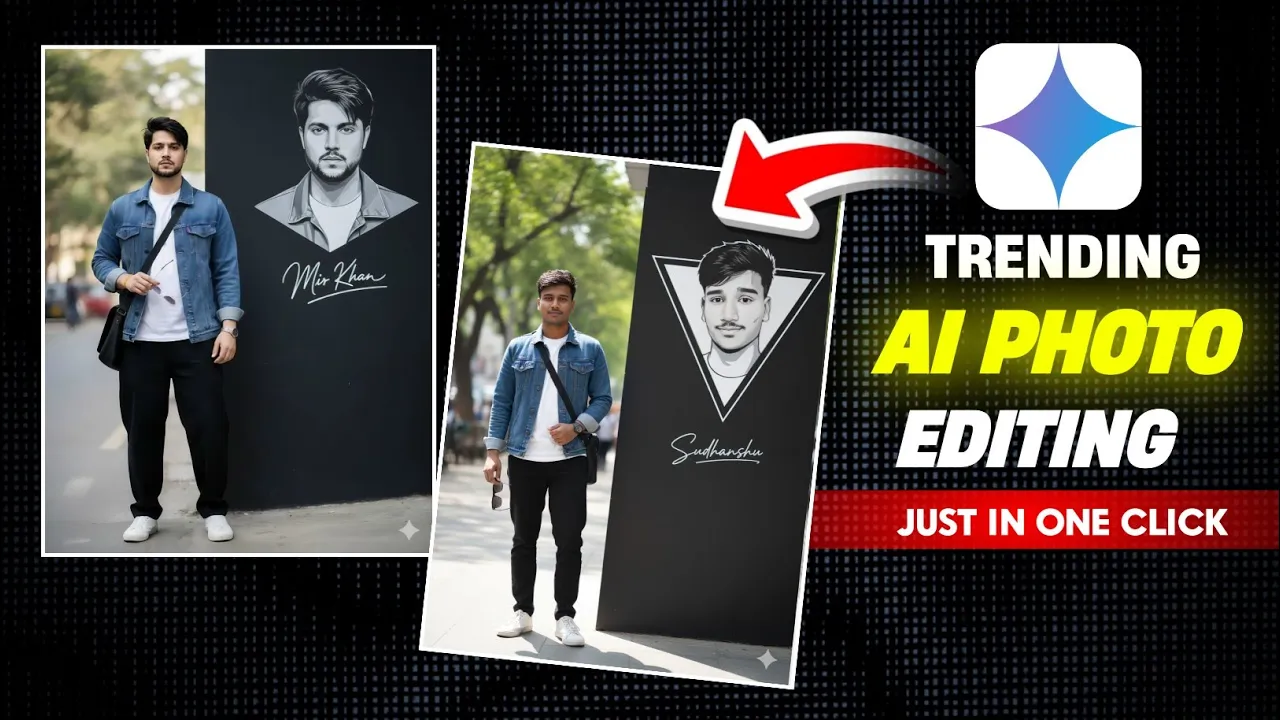
Hello friends! How are you all doing? In today’s tutorial, I’ll show you how to create trending AI photo edits using Google Gemini AI. Right now, this type of photo editing is going viral across every social media platform, and the best part is—you can do it easily with just a few clicks.
Step 1: Install Google Gemini App
First, open your Google Play Store and search for Gemini. Once you find the app, install it and open it. You’ll see a simple interface.
Step 2: Select the Gemini Nano Model
Inside the app, tap on the Create Image option and select the latest model called Gemini Nano. This ensures that your image edits look as realistic as possible.
Step 3: Upload Your Photo
Now click on the + button and choose any photo from your gallery that you want to edit. For example, you can pick a selfie and move to the next step.
Step 4: Use AI Prompts
To make the photo look stunning, you’ll need to add a proper AI prompt. I have shared ready-made prompts on my Telegram channel (link in the description). Simply copy the prompt, paste it inside the Gemini app, and replace the name in the text with your own. For instance, if the default prompt has the name “Sudhanshu,” you can change it to “Rahul Kumar” or your own name.
Step 5: Generate the Image
After pasting the prompt, click Send. Gemini Nano will process your image and generate a new AI-styled photo. Usually, it takes just a few seconds. The result will look almost identical to your original face, though sometimes it might not be 100% perfect.
Step 6: Save the High-Quality Version
At first, the preview inside the app might look low quality. Don’t worry! Long-press the photo and save it, or click on the download button. Once saved in your gallery, you’ll notice the image is stored in high resolution.
Fixing the Face with AI Face Swap
If your AI photo doesn’t look exactly like you, don’t panic. You can fix it using AI face swap tools. One of the best free options is Remaker AI.
- Open Chrome Browser and search for Remaker AI.
- Click on the official site and go to the Photo Face Swap option.
- Upload the AI-generated photo from Gemini.
- Then upload your real face as the target image.
- Select V1 or V2 face swap model and wait a few seconds.
The tool will swap the face and make it look exactly like you—clean, realistic, and perfect. Finally, download the result and check it in your gallery.
Final Result
Here’s the comparison: the original AI photo versus the improved face-swapped version. You’ll notice how natural and close to real-life it looks after the fix. This is why many creators use AI face swap tools to make their AI edits more professional.
Why This Trend Is Going Viral
AI photo editing is one of the biggest trends right now. People are using it to create cinematic edits, celebrity-style images, and even futuristic digital art. Since tools like Google Gemini AI and Remaker AI are free (or freemium), anyone can try them out and go viral on platforms like Instagram, TikTok, and YouTube Shorts.
Conclusion
That’s it for today’s tutorial. Now you know how to:
- Create trending AI photos using Google Gemini Nano
- Fix imperfect faces with Remaker AI face swap
- Save your AI images in high resolution
I hope you found this guide useful. Try it out and share your creations online. Stay happy and keep spreading positivity!
Recommended Reads:
💬 Join our WhatsApp Channel for updates!
👉 Click here to join