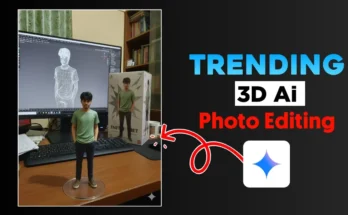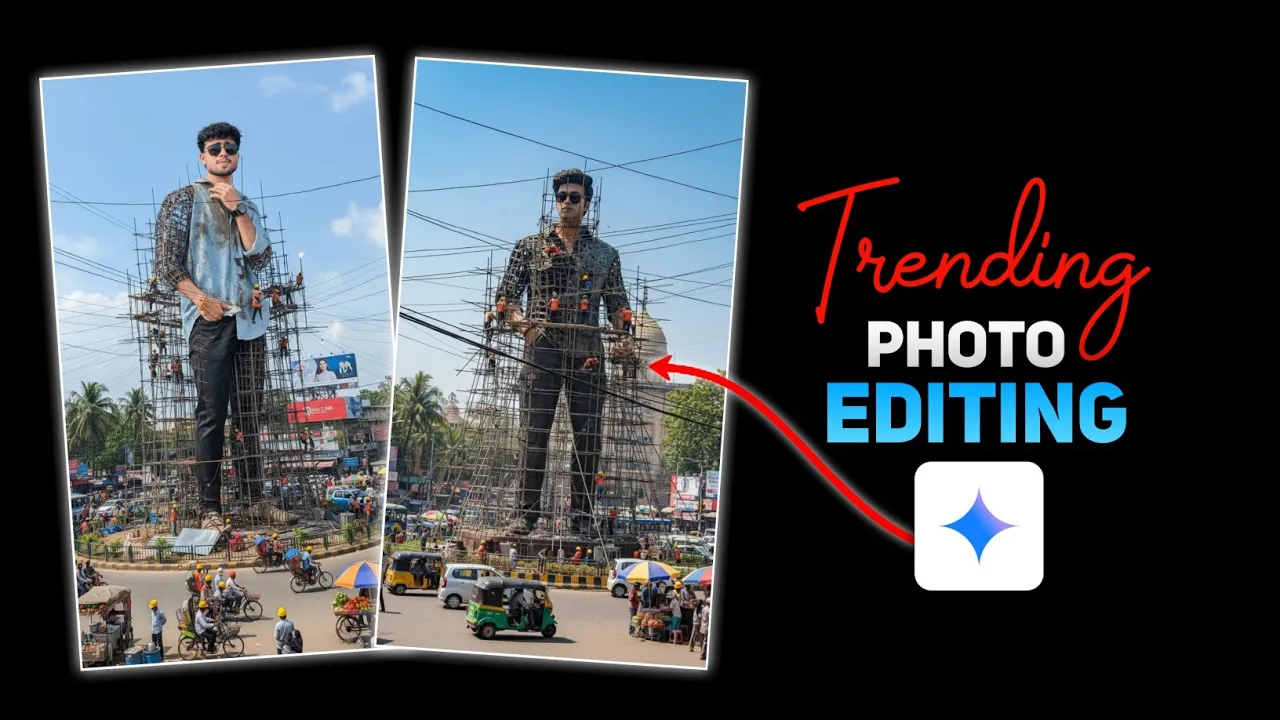
How to Create Trending AI Photos with Google Gemini
Hey guys, welcome back! In today’s tutorial, I’ll show you how to turn your normal photo into a trending AI-styled image using Google Gemini. And the best part? You can do this with just a simple text prompt. So, if you’ve been scrolling through social media and wondering how people are creating such realistic AI edits, this guide is for you!
Why Google Gemini for Photo Editing?
AI photo editing is trending like never before. With Google’s Gemini app, you don’t need advanced editing skills. Just upload your photo, paste a prompt, and watch AI generate a stunning result that looks super realistic. It’s fast, free, and fun.
Step 1: Install Google Gemini
If you don’t already have the Gemini app on your phone:
- Open Google Play Store
- Search for Google Gemini
- Install and open the app
Step 2: Set Language to English
When you first open Gemini, it might default to Hindi or another language. To switch:
- Tap on the app logo
- Go to Settings
- Select Language → choose English
Step 3: Upload Your Normal Photo
Now it’s time to upload the photo you want to edit:
- Click the “+” icon at the bottom
- Select Gallery
- Choose any normal photo you want to transform
Step 4: Use the Prompt
I’ve shared a ready-made prompt in the video description (or you can create your own). Here’s what you need to do:
- Copy the full prompt
- In the second paragraph of the prompt, you’ll see
[Your Favorite City]inside brackets - Replace it with your favorite city name (e.g., Mumbai, Delhi, New York, etc.)
- Paste the edited prompt back into Gemini
Step 5: Generate and Download
Now simply hit the Send button. Wait a few seconds and your AI photo will be generated. Once it’s ready:
- Click the Download icon on top
- Save the image to your gallery
Final Result
You’ll see how Gemini keeps your original photo’s look while adding an artistic AI touch. The result is realistic, stylish, and perfect for sharing on Instagram, Facebook, or even Canva projects.
Why This Trick is Trending?
People love quick AI transformations, and Gemini makes it super easy. With just a photo and a prompt, you can create artwork that usually takes hours of editing in apps like Photoshop or Lightroom.
Conclusion
So guys, this is how you can create your own trending AI photo edits using Google Gemini. Try it out and impress your friends with unique, creative photos. If you liked this tutorial, don’t forget to hit the like button and subscribe for more AI editing tips!
Pro tip: Always experiment with different prompts to get even more unique results.
💬 Join our WhatsApp Channel for updates!
👉 Click here to join