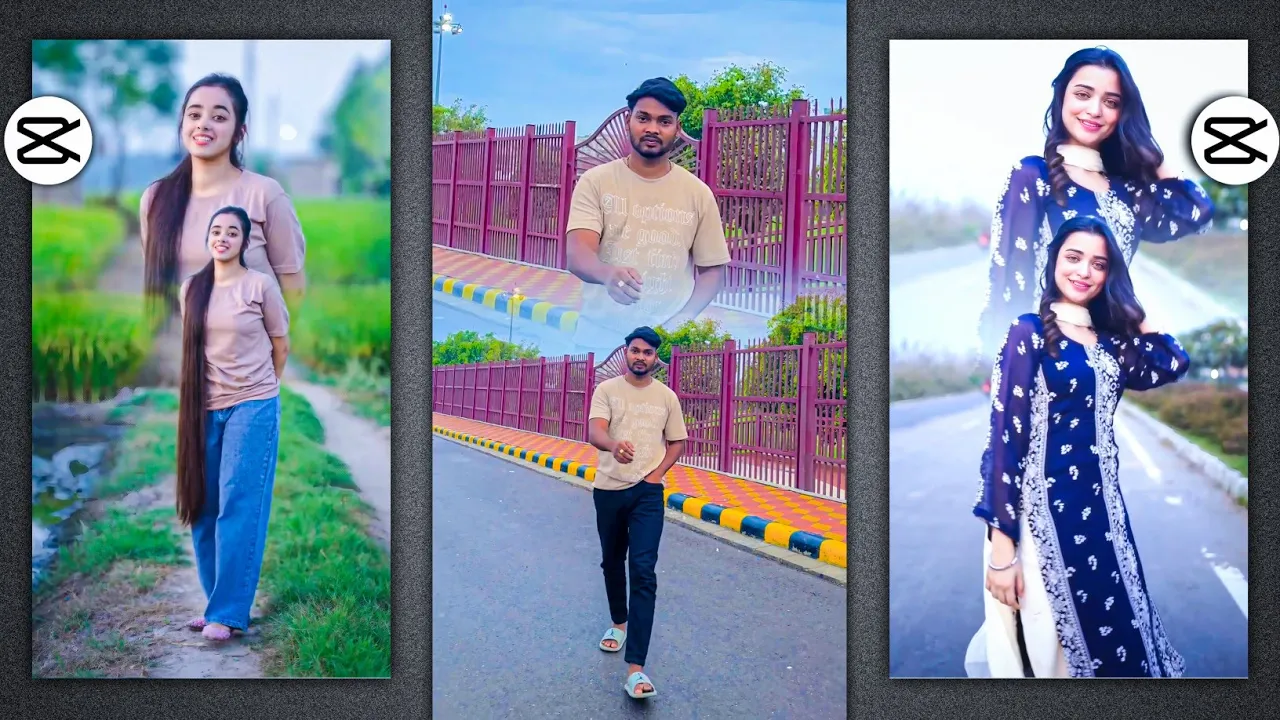
How to Create Double Layer Masking Video Editing in CapCut
Hello guys, welcome back to another tutorial! In today’s guide, I’m going to show you how you can create viral double layer masking videos using the CapCut app. These types of edits are very popular on Instagram and often go viral. Chances are, you’ve already seen one of these trending edits on your feed.
If you want to learn this step-by-step, make sure you read this tutorial until the end. Let’s get started!
Step 1: Install CapCut & VPN
- First, install the CapCut app from the Play Store.
- To use CapCut (especially some pro features), you’ll also need a VPN. For example, you can use Proxy VPN or any other reliable VPN.
- Open the VPN, click on “Connect,” and wait until it’s connected.
- Now, open the CapCut app.
Step 2: Start a New Project
Once CapCut is open:
- Click on New Project.
- Select the video you want to edit.
- Remove the default CapCut outro at the end of the video by clicking on it and selecting Delete.
Step 3: Add the Double Layer Overlay
To create the double layer effect:
- Go to Overlay → Add Overlay.
- Select the same video again and add it as an overlay.
- Zoom in slightly and position it at the top of the screen.
Step 4: Apply Masking
Now it’s time for masking:
- Scroll to the Mask option.
- Select Horizontal mask.
- Adjust using the circle and arrow tools to blend the layers smoothly.
- Click Done when it looks good.
Step 5: Fix Hidden Face Issue
If the bottom layer’s face is not visible:
- Add the video again as an overlay.
- Fill it properly across the screen.
- Use the Remove Background (Remove BG) option.
- Wait until processing is complete – now the face will appear perfectly.
Step 6: Add Music & Effects
- Go to Audio → Sounds to add background music. You can use device audio or download from CapCut’s library.
- Go to Effects → Video Effects. Popular ones include:
- Halo Blur
- Diamond Zoom
- Horizontal Opening
- Butterfly Effect
- Apply them to the entire video by selecting Object → All.
Step 7: Color Grading
Color grading can make your video look cinematic:
- Go to Adjust → Filter and test different filters until you find one that matches your video.
- Manually adjust Clarity, Brightness, Saturation, and Shadows for a polished look.
- You can also use HSL adjustments to brighten skin tones.
Step 8: Export Your Video
Once your video looks perfect:
- Click on Export.
- Set everything to maximum quality.
- Save the video to your device.
Final Thoughts
That’s it! You’ve successfully learned how to do double layer masking video editing in CapCut. With overlays, masking, background removal, effects, and color grading, your edits can easily go viral on Instagram or TikTok.
I hope you found this tutorial helpful. Try it out, experiment with filters and effects, and create your own viral edits. Don’t forget to subscribe to my Telegram or WhatsApp channels for more editing tricks!
Related Resources:
💬 Join our WhatsApp Channel for updates!
👉 Click here to join