h1>How to Create Trending Instagram Videos with CapCut – Step by Step Tutorial
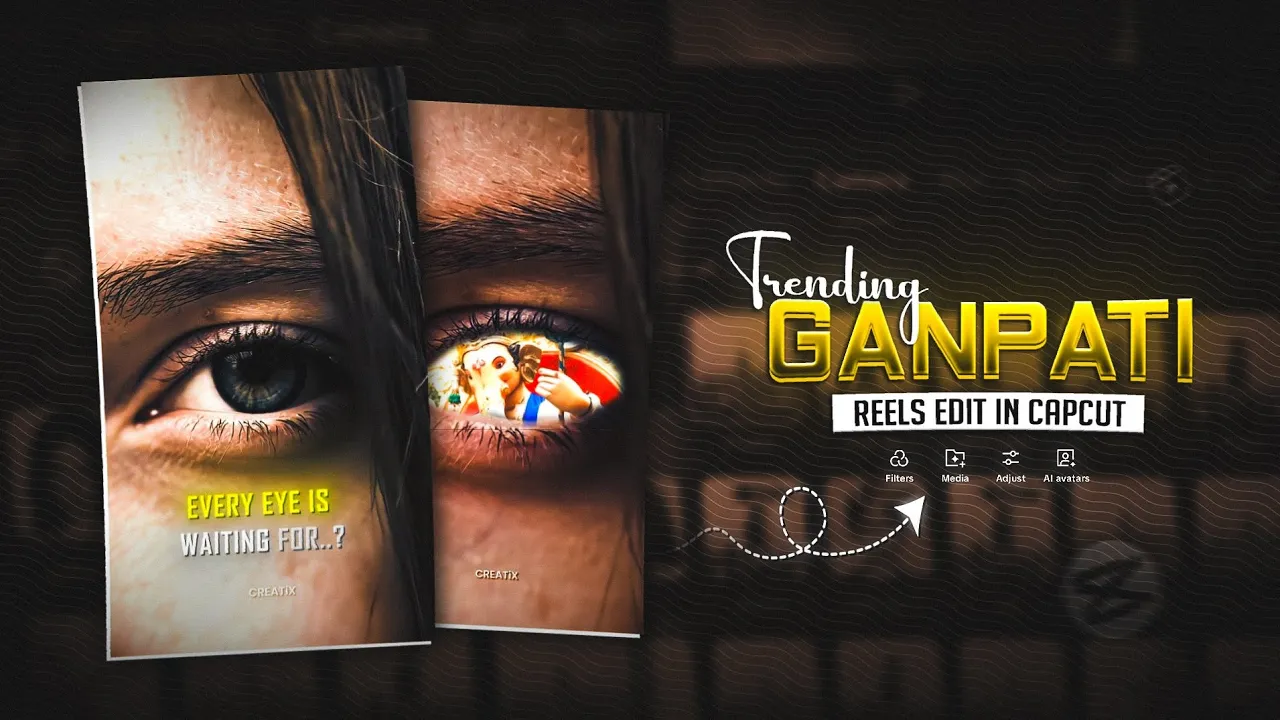
Hey guys, first of all, let’s check out the final result of the trending video we are going to create. Once you see how amazing it looks, I’ll explain step by step how to edit it. Right now, this style of video is trending heavily on Instagram, and the best part? You can easily make it with just one application – CapCut.
So, if you’ve been wondering how these viral reels are made, stay with me till the end. I’m going to guide you through every step clearly without wasting time. Let’s jump straight to the tutorial on my phone screen.
Step 1: Open CapCut and Start a New Project
- Open the CapCut app and click on New Project.
- Select the video you want to edit (you can even use the sample video provided on my Telegram channel).
- Once the video is imported, remove the watermark by clicking on it and deleting it.
Step 2: Extract Audio and Add Beats
- Select your main video, and use the Extract Audio option to separate video and audio.
- Click on the audio track, then go to Beats.
- Play your video and mark beats at the right points for smooth transitions.
For example, add a slight zoom effect at specific beats, and later use a blast text effect for more impact.
Step 3: Slow Motion with Smooth Quality
- Select your video and go to Speed → Normal.
- Change it to around 0.4x for slow motion.
- Enable Smooth Slow Motion and choose Better Quality.
This ensures that your slow-motion clip looks clean and cinematic instead of laggy.
Step 4: Editing Eyes Using Autodesk
For advanced details like removing or editing eyes, you’ll need to use Autodesk SketchBook.
- Take a screenshot of your frame from CapCut.
- Import it into Autodesk and zoom in on the eyes.
- Use the Hard Brush tool to carefully paint and remove details.
- Make the background transparent and save the image.
Now import this edited photo back into CapCut and extend it across the music timeline.
Step 5: Adding Text and Animations
- Click on Add Text and type: EVERY EYE IS WAITING FOR…
- Use the Oswald font, set the color to Yellow, and add a black shadow for depth.
- For the second text, write: WAITING FOR ??? in White.
- Apply Blur Wipe animation for entry and smooth exit animation for text fade-out.
Step 6: Adding Overlays & Mask Effects
- Add an overlay video (like a Lord Ganesha video provided on Telegram).
- Go to Mask → Circle and adjust it around the head for a professional look.
- Use Feather to soften the edges.
Later, you can apply Zoom Animations with keyframes for dynamic movement.
Step 7: Ripple and Color Grading Effects
- Go to Video Effects and search for Ripple Effect.
- Adjust the speed to around 20–25 for a smooth wave-like effect.
- Reduce Saturation slightly (around -15) for a cinematic HDR-style look.
Final Result
Once everything is done, your Instagram reel will look cinematic, smooth, and trending – exactly like the viral edits you see online. Try adding your own creativity to make it stand out even more!
Useful Resources
- Download CapCut – Free video editing app for reels.
- Autodesk SketchBook – For advanced photo retouching.
- Instagram Reels – See what’s trending right now.
So that’s it, guys! Follow these steps and start creating viral Instagram videos from your phone. Stay tuned for more tutorials, and don’t forget to experiment with effects to create your unique style.
💬 Join our WhatsApp Channel for updates!
👉 Click here to join