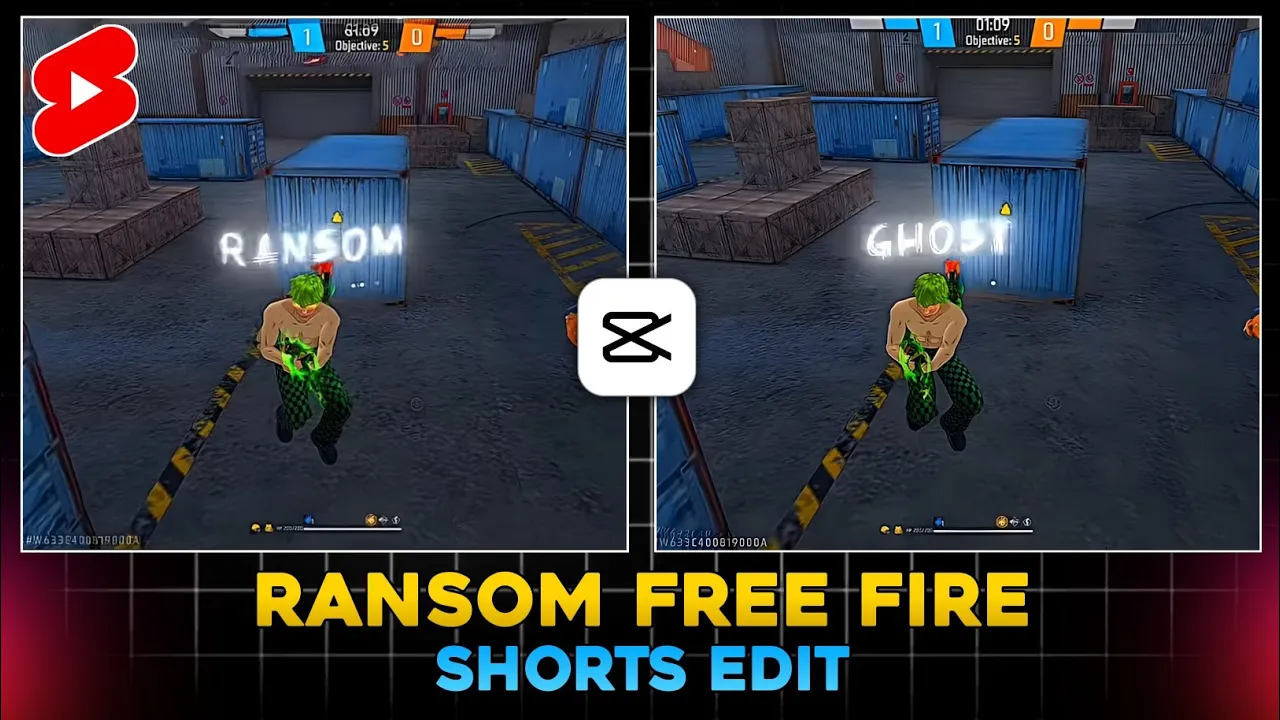
How to Edit Free Fire Ransom Headshot Shorts for Viral Gaming Videos
Hey guys! If you’ve been watching YouTube lately, you might have seen channels like Zero Hakai and Nus grow to millions of subscribers just by uploading Free Fire ransom headshot shorts. If you’re running a gaming shorts channel but not seeing growth, this editing style could be your game-changer. Once you learn this, nothing can stop your videos from going viral!
What You Need Before Editing
- At least two Free Fire headshot clips from your gameplay:
- One normal headshot
- One headshot while jumping
- CPK Video Editor App (download from Play Store or use the link in description/Telegram)
- A free VPN app from Play Store (e.g., search VPN apps here)
Step 1: Set Up Your Editing Environment
After installing CPK Video Editor, connect to any server using your VPN app. Once connected, open CPK and click on New Project. Import your gameplay clips in HD and add them to your timeline.
Don’t forget to delete the default watermark from the end of your clips. Also, mute the original gameplay sound to make space for background music.
Step 2: Editing the Headshot Clips
Now, zoom into your timeline using two fingers. Locate where the jump headshot starts and ends, and split the clip accordingly. Apply slow motion to this segment by selecting 0.1x speed and enabling smooth slow motion for better quality.
Export this slowed-down part in 1080p Ultra HD. Re-import it back into your project and adjust the speed again to around 0.5x or 0.6x for an ultra slow-motion cinematic effect.
Step 3: Adjust Aspect Ratio & Zoom
Change your project aspect ratio to 9:16 (perfect for YouTube Shorts and Instagram Reels). Slightly zoom in on all three clips for a more dynamic feel.
Step 4: Add Music & Lyrics Overlay
To make your edit more engaging, extract audio from a lyrics video (link usually provided in the description). Add it as background music. Then, import the lyrics video as an overlay, mute it, and adjust its position to sync with your gameplay.
You can trim unwanted parts and zoom in slightly on the lyrics overlay. Use the splice option to blend it seamlessly with your gameplay.
Step 5: Apply Ripple Animations
To give your Free Fire ransom edits a professional touch, add a Ripple Effect animation to your slow-motion clips:
- Select the clip → Go to Animation → Choose Ripple
- Set duration to 0.5s (or tweak between 0.2–1s for variation)
Apply ripple to all clips except the first and last for a cleaner look.
Step 6: Final Export
Once everything is in place—music, overlays, ripple effects, and transitions—click on the Export button and save your video in Ultra HD. Your Free Fire ransom headshot edit is now ready to upload!
Pro Tips to Go Viral
- Always use trending background music to boost engagement (check royalty-free music here).
- Upload in 9:16 format for Shorts/Reels visibility.
- Use attention-grabbing thumbnails and titles like “Insane Free Fire Headshot Slow Motion Edit”.
Conclusion
That’s it, guys! This is how you can create viral Free Fire ransom edits using CPK Video Editor. Channels like Hakai and Nus have already proven how powerful this format is. Now it’s your turn to shine!
If you liked this tutorial, give it a thumbs up and don’t forget to subscribe for more Free Fire Shorts editing tutorials.
💬 Join our WhatsApp Channel for updates!
👉 Click here to join