How to Convert Any Normal Video into an iPhone-Looking Video on Android
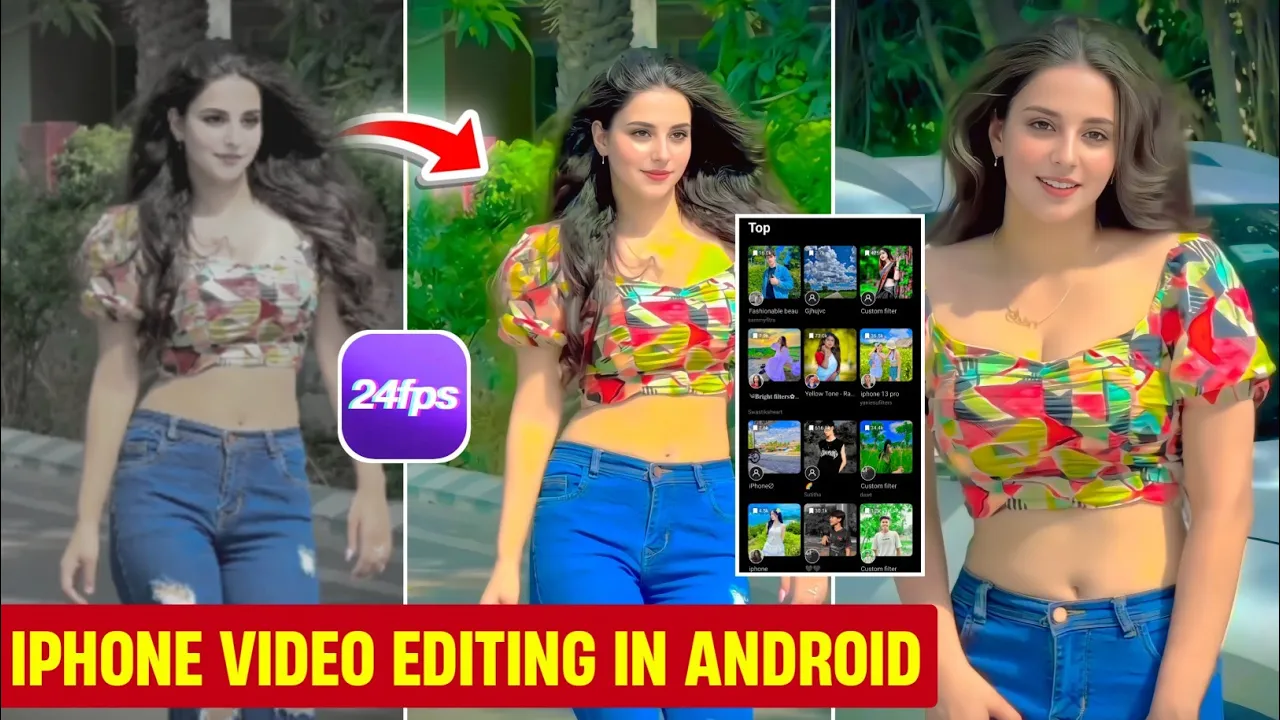
Hey guys, welcome back! In today’s post, I’m going to share a super cool trick with you—how you can convert any simple, normal video into a stunning iPhone-looking video with just one click. The best part? You can do it directly from your Android phone using a free app from the Play Store.
The Secret App You’ll Need: 24FPS by Polarr
To achieve this iPhone-like video effect, we’ll use an app called 24FPS developed by Polarr. This app is available for free on the Google Play Store.
Just search for “24FPS” in the Play Store and install the app. Once installed, open it and you’ll find a wide collection of filters ready to transform your videos instantly.
Creating an Account
When you first open the app, you’ll see the profile option. Simply tap on it and create an account using your email ID and password. It’s quick and easy!
Discover Filters for iPhone-Style Videos
After logging in, go to the Discover section. Here you’ll find tons of filters, including ones that perfectly mimic iPhone camera styles. Tap on See All to view the best filters such as those inspired by iPhone 13 Pro and other custom iPhone looks.
How to Apply Filters to Your Video
- Select the filter you like best.
- Tap on Edit with Filter.
- Choose the video you want to edit from your gallery.
- Watch the magic happen! With just one click, your normal video will transform into an iPhone-style video.
You’ll clearly notice the difference with a “before and after” comparison. The filters make your video sharper, smoother, and give it that signature iPhone feel.
Adjusting the Video for Best Results
While the filters do an excellent job, you can also make manual adjustments:
- Highlights – Decrease them for a more realistic iPhone look.
- Shadows – Increase slightly to avoid the Android feel.
- Contrast – Keep it low for a smoother cinematic effect.
- Colors – Increase vibrance and saturation to make your video pop.
- Temperature – Adjust slightly depending on your preference.
You can even tweak HSL (Hue, Saturation, Luminance) settings for green or yellow tones to customize the final look.
Saving and Exporting Your Video
Once you’re happy with the edits, simply click on Save & Share. The video will be exported without any watermark, which is a huge bonus! Now your video is ready to share on Instagram, TikTok, or YouTube.
Why Use the 24FPS App?
The 24FPS app is perfect for content creators who want professional-looking videos without expensive equipment. It allows Android users to achieve the same cinematic quality that iPhone users enjoy.
Final Thoughts
So that’s it, guys! With just one free app and a few simple steps, you can convert your normal Android videos into stunning iPhone-style videos. Try experimenting with different filters until you find the one that fits your style the best.
Hope you found this tutorial helpful. Stay tuned for more editing tips and tricks. Until next time, keep creating and keep sharing happiness!
Also read:
- Professional Video Editing with Adobe Creative Cloud
- InVideo: Online Video Editing for Social Media
- Filmora: Easy Video Editor for Beginners
💬 Join our WhatsApp Channel for updates!
👉 Click here to join