How to Create Happy Birthday Video Editing in VN Video Editor
Hey guys! Welcome back to another video. In today’s tutorial, I’m going to show you how you can create amazing Happy Birthday video edits using your photos inside the PixelLab app and the VN Video Editor. If you watch this tutorial till the end, you’ll be able to easily make professional-looking birthday videos for your friends and family.
What You Need
- PixelLab (Free on Play Store) – to design and crop your photo layouts.
- VN Video Editor (Free on Play Store) – to add animations, lyrics, and final touches.
- Photos you want to use in your birthday video.
Step 1: Editing Photos in PixelLab
First, open PixelLab and adjust your background size. Set the dimensions to 800 x 4000 for a vertical collage. Change the background color to white for a clean look.
Now, start adding your photos one by one:
- Click the plus icon → choose From Gallery → select your photo.
- Crop the photo so that only the face remains visible.
- Use Relative Size to resize the image and Position to place it properly.
- Repeat the process for multiple photos, keeping equal spacing between them.
Once you’ve arranged all your photos, save the collage in Ultra Quality to your gallery.
Step 2: Creating Video in VN Video Editor
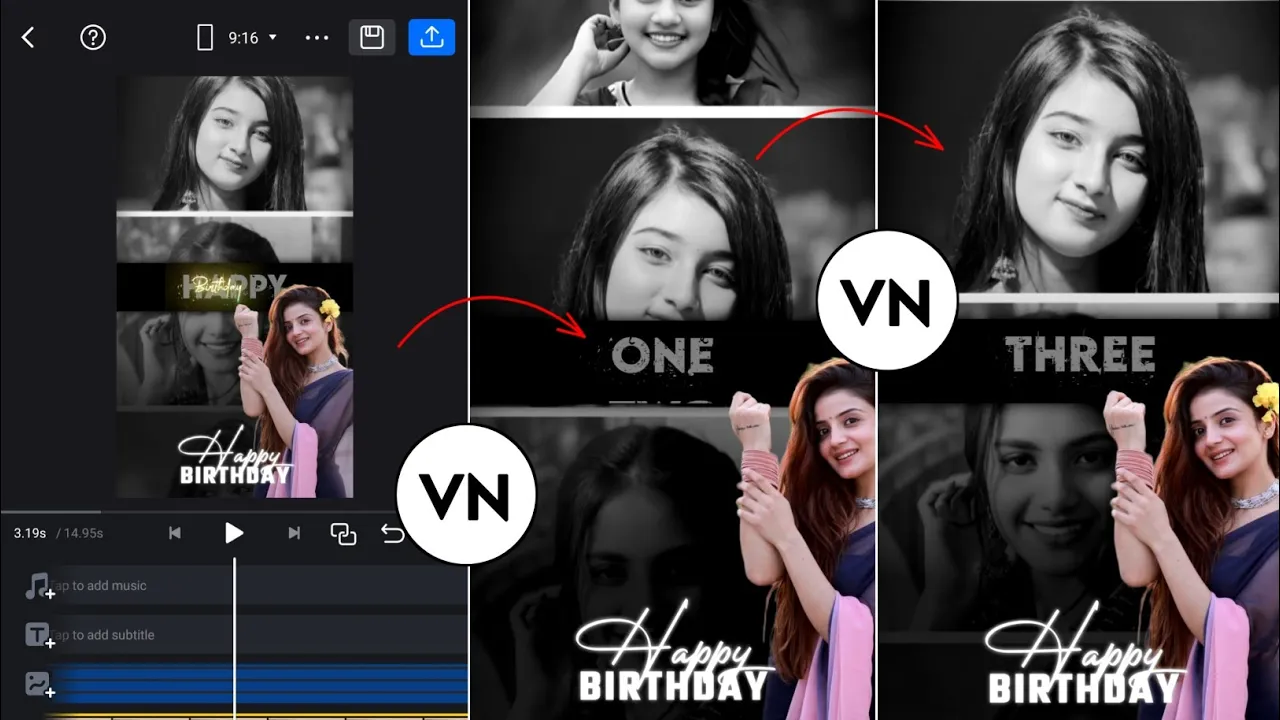
Now, open VN Video Editor and create a New Project. Import the collage you created in PixelLab.
- Set the duration of the photo to 14 seconds.
- Change the aspect ratio to 9:16 for vertical video format.
- Convert your photo to Black & White by lowering saturation to -100.
- Add Vignette effect for a shadow look (around 64 is perfect).
Step 3: Adding Animations and Effects
Here’s where your video comes to life:
- Use Keyframes to animate the photo’s movement (upwards or sideways).
- Download and add a Shadow PNG (link usually provided in video descriptions).
- Set opacity to about 84% for a smooth shadow effect.
- Add a Splash PNG for decoration.
- Overlay Lyrics Video and set Blend Mode to “Screen.”
Step 4: Adding Happy Birthday Text & Personal Photos
To make your video special:
- Download Happy Birthday Text PNG and add it to the video timeline.
- Import one of your photos, remove its background using the Cutout feature.
- Place your photo behind the text layer for a stylish effect.
- Use keyframes again to animate your photo slightly.
Final Step: Export Your Video
Once you’re happy with the result, click the Export button in VN Video Editor. Save it in high quality and share it on WhatsApp, Instagram, or YouTube as a personalized Happy Birthday video.
Why This Method Works
Using PixelLab gives you full control over photo alignment, while VN Video Editor allows advanced animation, blending, and professional effects. The combination of both apps ensures that your birthday video looks premium without needing a PC or advanced editing software.
Useful Resources
- Download PixelLab
- Download VN Video Editor
- Canva Video Maker (Alternative)
- Adobe Express Birthday Video Maker
Final Words: That’s it guys! With just two free apps and a little creativity, you can create stunning Happy Birthday videos with photos, text, and effects. If you found this tutorial helpful, give it a like and don’t forget to share it with your friends!
💬 Join our WhatsApp Channel for updates!
👉 Click here to join