How to Edit Videos Directly in Instagram App – Step by Step Guide
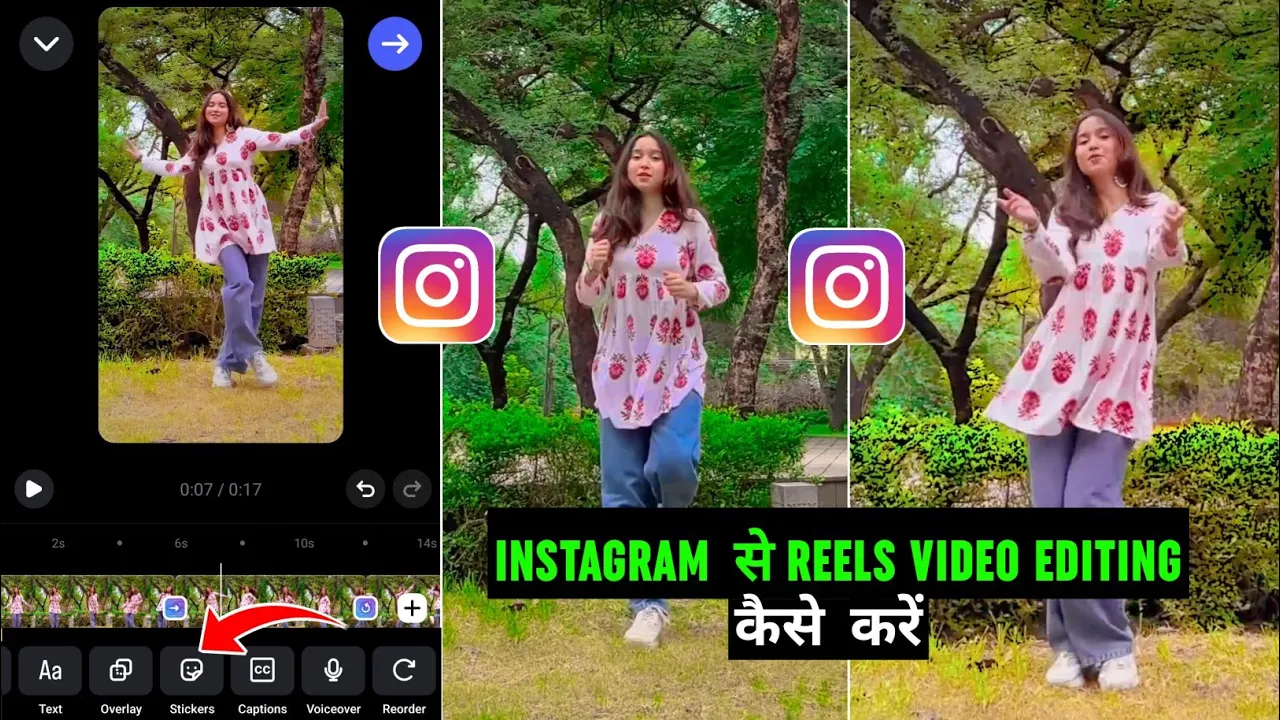
Hey guys, welcome back to another tutorial! 👋 In today’s video, I’ll show you how you can edit any of your normal videos directly inside the Instagram app without needing any external editing software. By the end of this guide, you’ll know how to color grade, add effects, apply filters, transitions, overlays, slow-motion, and finally upload your video in the highest quality as an Instagram Reel.
Step 1: Open Instagram and Access the Camera
First, open your Instagram app. Swipe left and your camera will open. At the bottom, you’ll see multiple options like Story, Reels, and Messages. To edit your video, select the Reels option.
Step 2: Select a Video from Your Gallery
Now tap on the Gallery option to select the video you want to edit. Once you add the video, you’ll be ready to apply edits.
Step 3: Color Grade with Instagram Effects
After adding the video, go to the Effects option. Instagram provides a wide range of effects such as Ultra HD, Bright, HDR, Static, and many special effects. You can search for more effects or use saved ones from your collection. Choose the effect that best suits your video and apply it.
Step 4: Apply Filters
Next, scroll to find the Filters option. Instagram has plenty of filters to choose from. Select one you like and adjust its intensity according to your preference. Once done, tap Done to apply the filter.
Step 5: Add Transitions
To add transitions, split your video where you want the transition to appear. Tap on the split section, and you’ll see multiple transition effects like Flares, Fade, and more. Select your favorite transition and hit Done. Repeat for other clips if needed.
Step 6: Adjust Speed (Slow Motion or Fast Motion)
If you want to make a clip slow motion or fast motion, select the part of the video, go to the Speed option, and adjust it forward (to speed up) or backward (to slow down). Tap Done once finished.
Step 7: Add Audio or Import Music
If your video doesn’t have sound, you can add audio by tapping Add Audio. Instagram lets you choose from a huge music library, or you can import audio directly from your phone.
Step 8: Add Overlay Videos
Want to add another video clip over your main video? Use the Overlay option. Select the video you want, adjust its size by zooming in or out, and position it where you want. If you don’t want the overlay’s sound, mute it by adjusting the volume settings.
Step 9: Final Touches
After editing, check out other tools at the bottom for advanced tweaks. Once satisfied, click on Next. Before uploading, go to More Options and enable Upload at Highest Quality for the best results.
Step 10: Upload Your Reel
Finally, hit Next and upload your beautifully edited video as an Instagram Reel. 🎬
Why Edit Videos Directly in Instagram?
- No need for third-party editing software
- Quick and easy process
- Access to trending filters and effects
- Perfect for creating Reels that grab attention
Related Resources
If you want to level up your editing skills, here are some helpful resources:
Final Words: Guys, this is how you can edit any normal video inside the Instagram app itself. From color grading to adding transitions, slow motion, overlays, and filters, everything can be done without extra software. So try it out and create stunning Reels today! 🚀
💬 Join our WhatsApp Channel for updates!
👉 Click here to join